
When users try to use the Open in Excel option in D365FO, the data won’t load, and they get the following error message: An Error occurred while retrieving the row count of entity XXXXXX. Error details: User not authorized to read view XXXXXX. Request Denied.
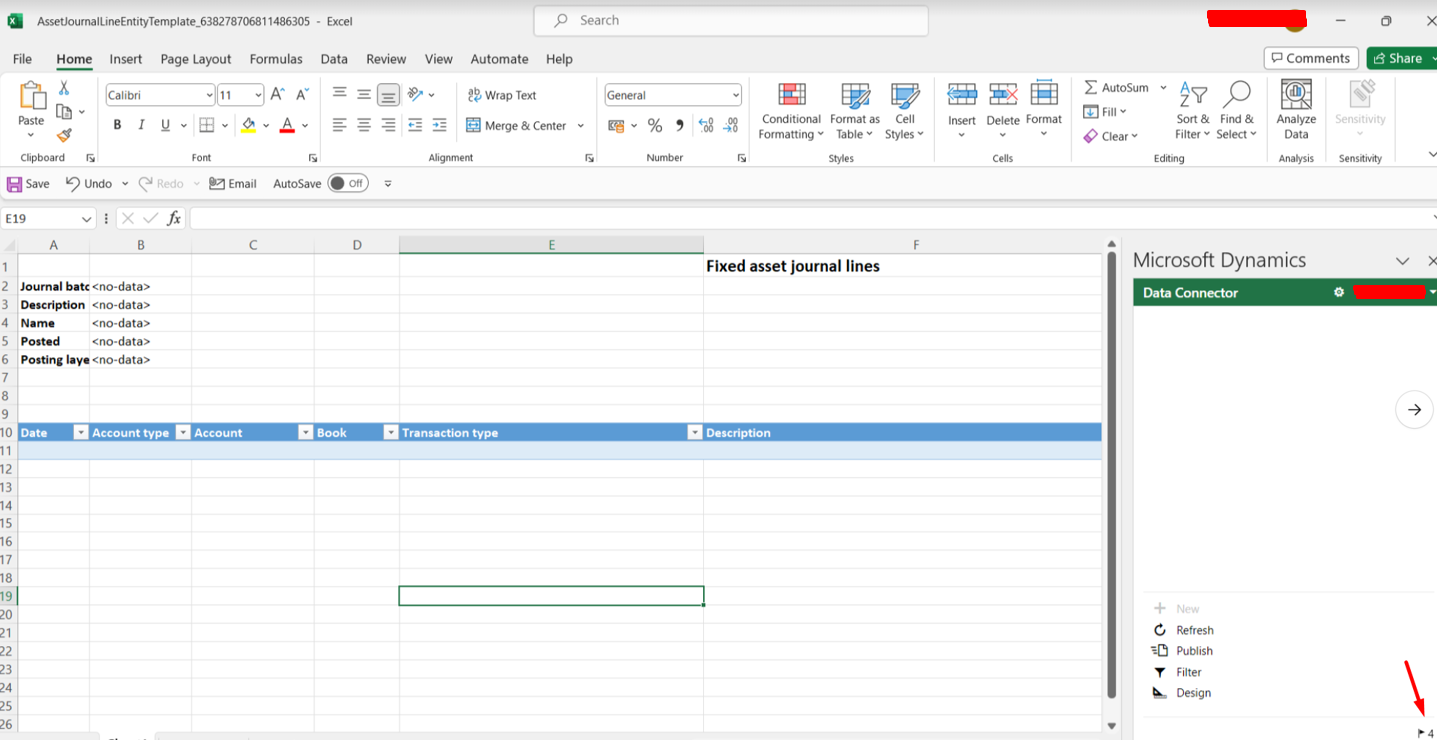
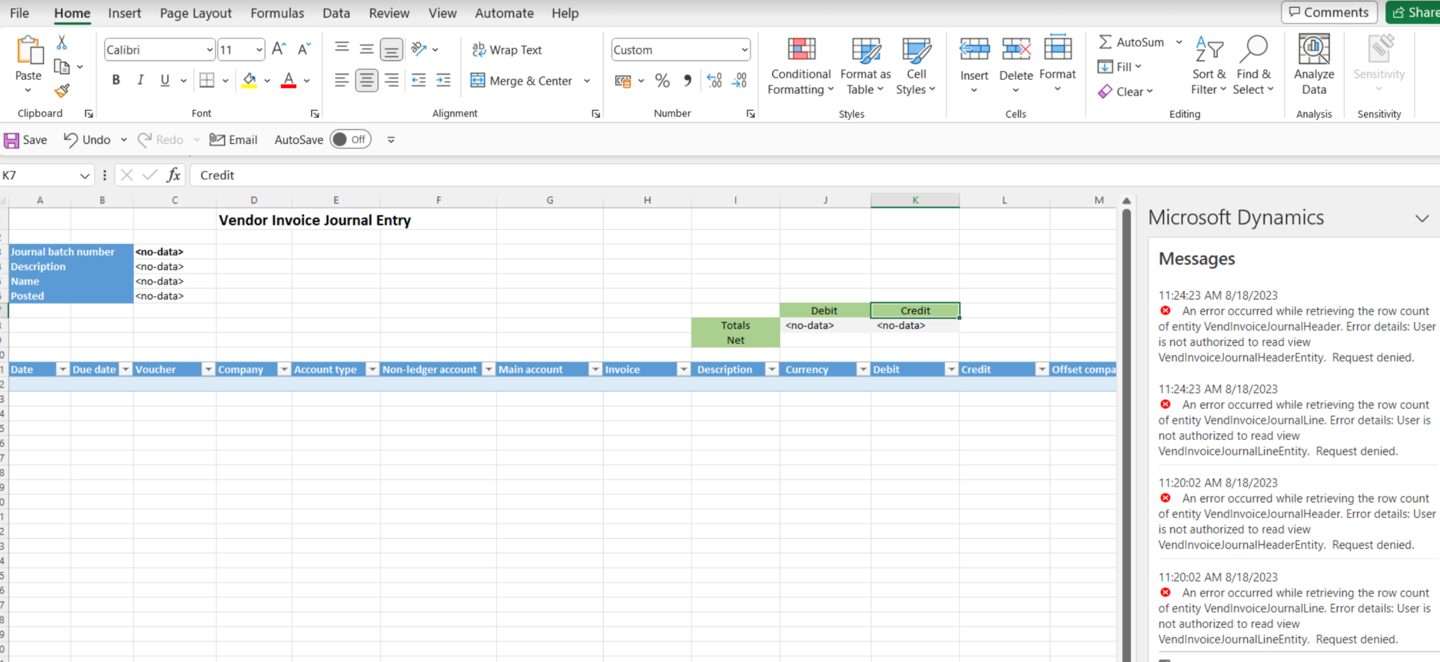
Dealing with security roles, duties and privileges, usually doesn’t help here.
Here are a few things that you should try:
Reset Usage Data
The first thing you should try to make Open in Excel work is to reset usage data for this user and try again.
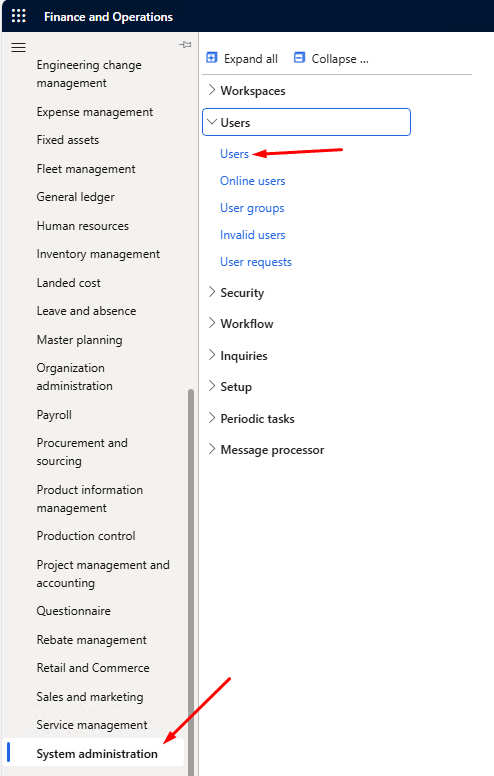
Go to System administration > Users:
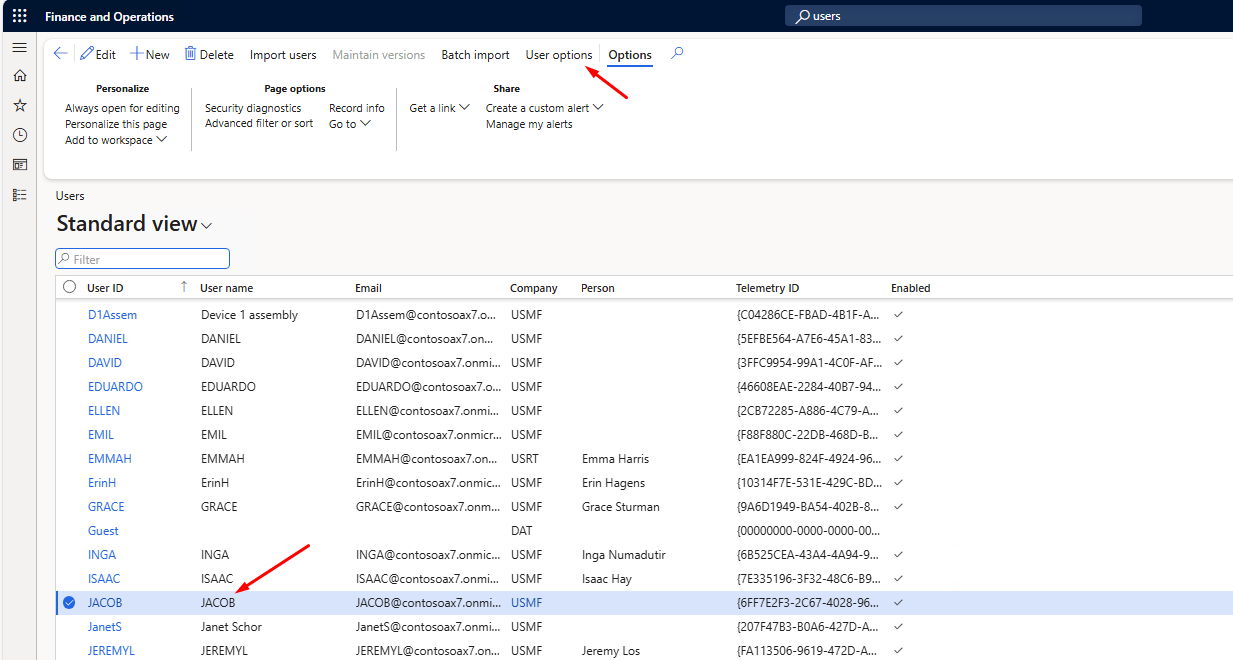
Find the user having this problem with Open in Excel and click on User options:
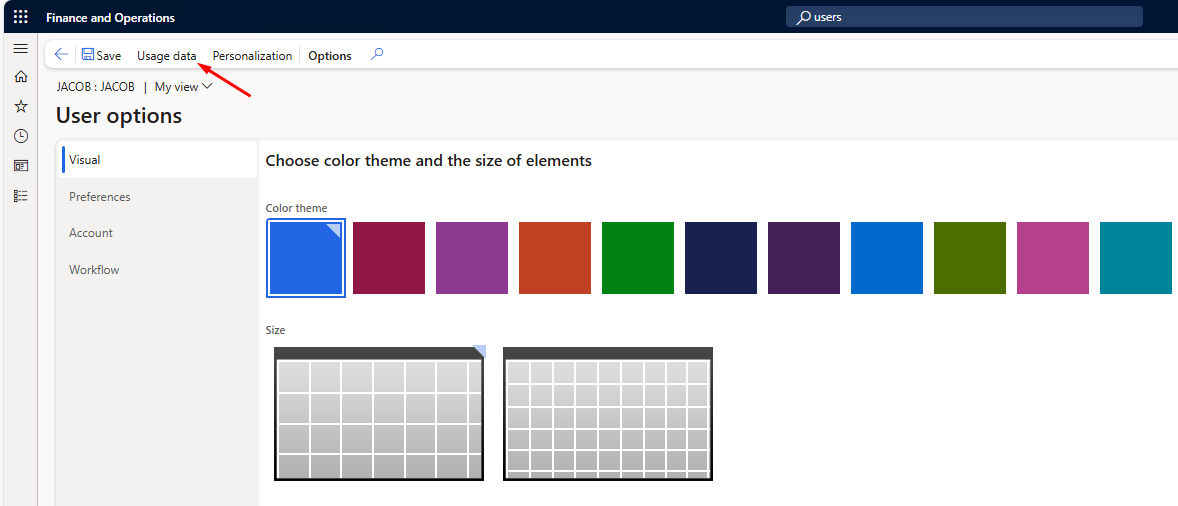
Click on Usage data:
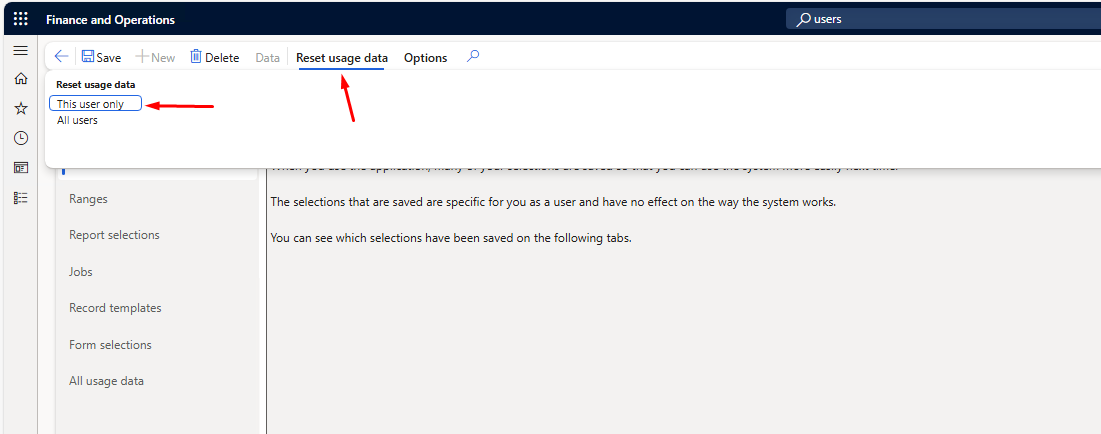
Click on Reset usage data and then select the option This user only:
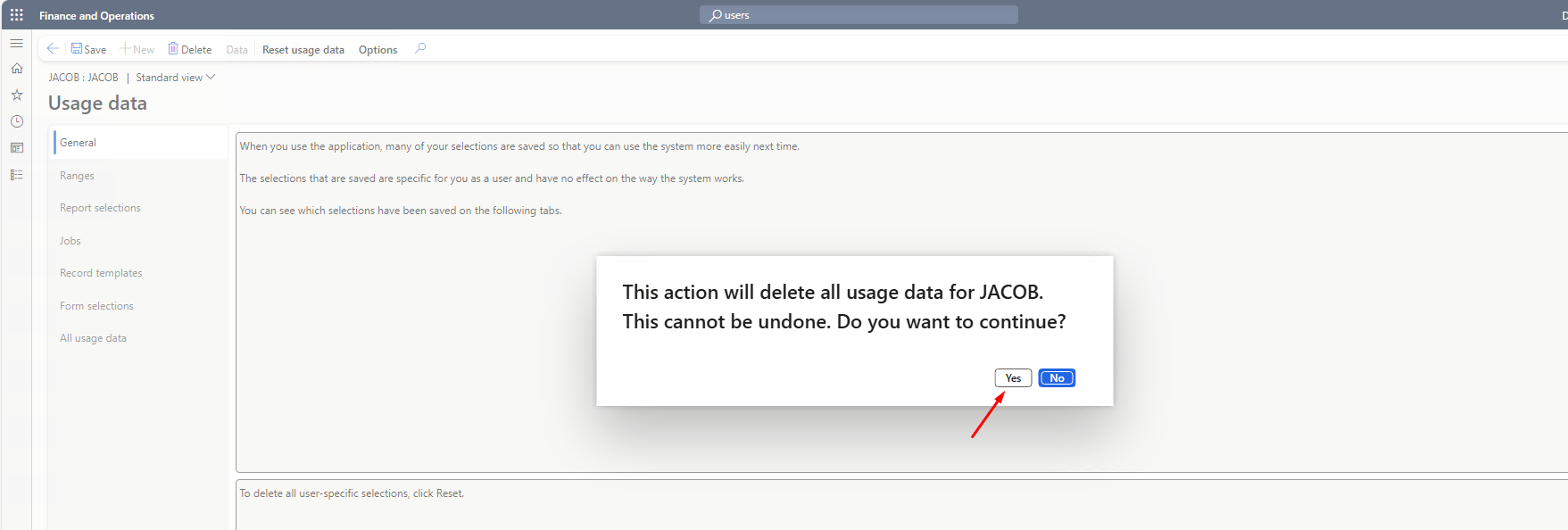
Confirm your action:
Delete The User and Create It Again
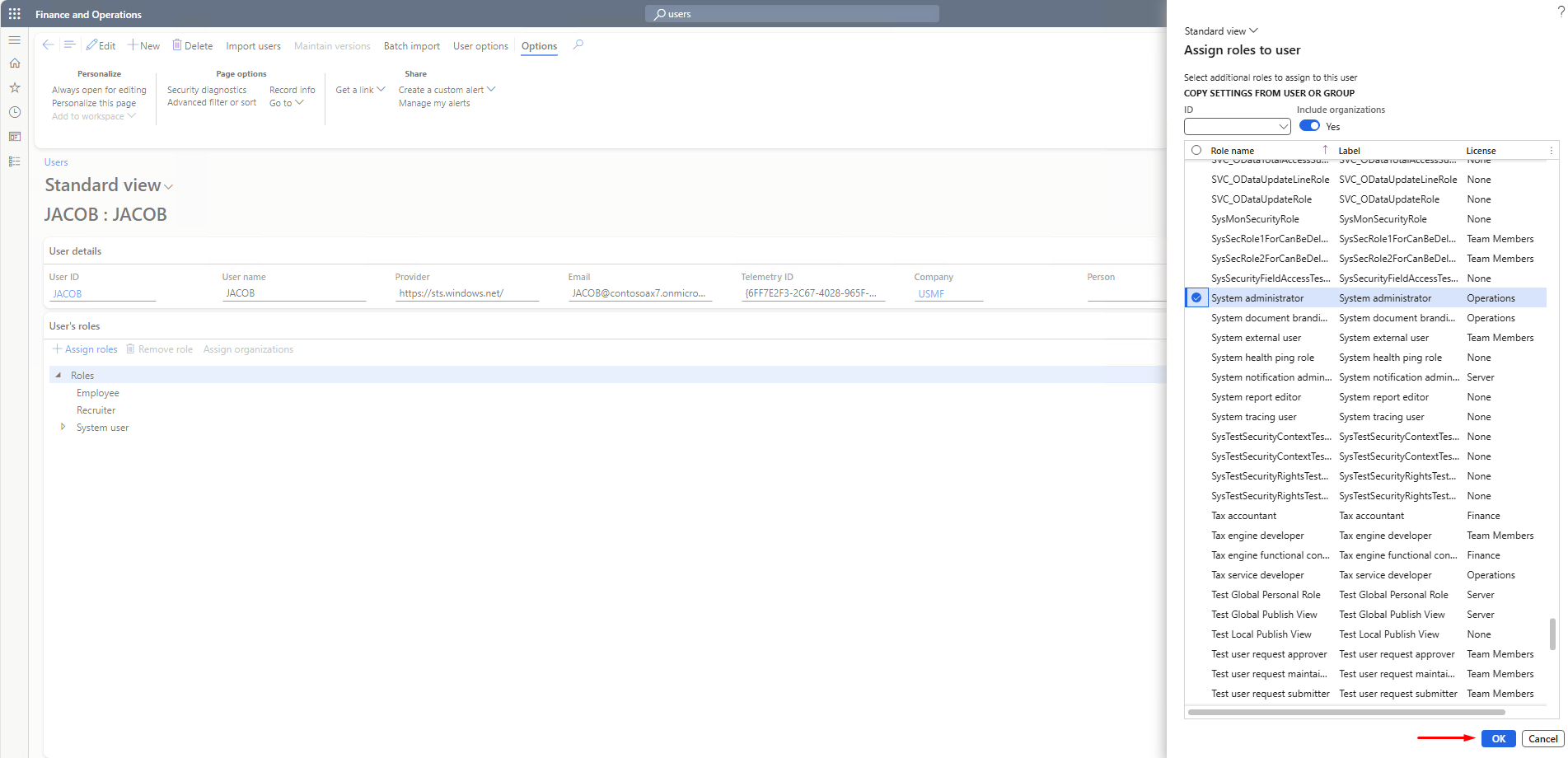
If the previous option doesn’t fix the problem with Open in Excel, you can temporarily assign a System administrator user role to this user.
Go to System administration > Users and open the user card. Click on Assign roles:
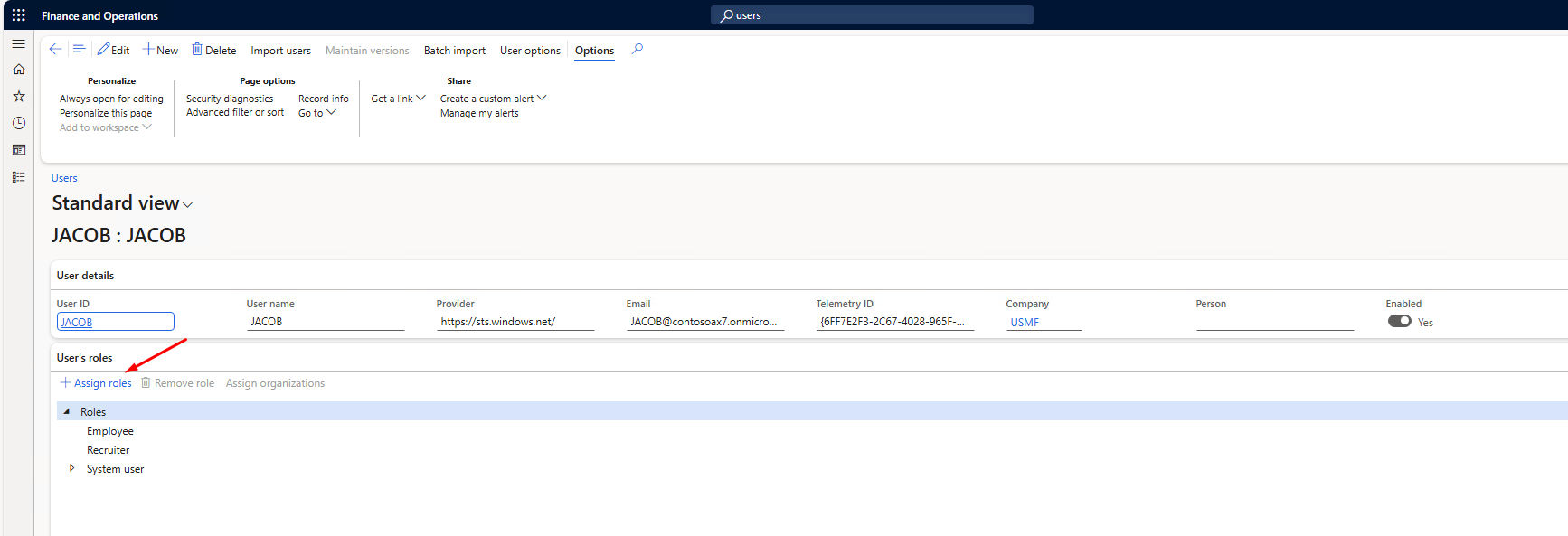
Find the System administrator role, select it and click OK:
If this helps, it means that you should delete the user and create it again.
Don’t ask me why, because I also don’t have any idea why does the system have this strange behavior, but I hope it helps you solve the problem with Open in Excel feature in D365FO.