
If you’re working with sensitive or company-specific data in Microsoft Fabric, one of the first challenges you’ll face is making sure that every user only sees the records they are supposed to see. In my case, different people across different countries needed access to different legal entities (dataareaid), and some of them needed access to completely different tables.
That’s where row-level security in Microsoft Fabric comes into play.
Before I jump into the “how,” let me briefly explain the “why.” Many people don’t know this, but Microsoft recently introduced RLS directly inside OneLake, but it’s still in preview mode. Because of that, I didn’t want to rely on something that wasn’t fully stable or supported across all engines. Instead, I decided to implement Microsoft Fabric RLS the classic way: inside the Data Warehouse, using SQL-based security functions and policies.
This approach works flawlessly, and it behaves exactly like Row-Level Security has always worked in SQL Server.
What is RLS (Row-Level Security)?
Row-Level Security (RLS) is a feature that restricts access to individual rows inside a table based on the identity of the user executing the query. Instead of giving someone access to an entire dataset, you can filter the data behind the scenes so they only see the records that belong to their country, department, or legal entity.
If you’ve used SQL Server before, this will feel very familiar. In Microsoft Fabric Data Warehouse, RLS is implemented through:
- A table-valued function that defines the filtering logic
- A security policy that applies the filter to a specific table
Once enabled, every query automatically respects these rules – even Power BI, as long as users authenticate through Entra ID.
What is Row Level Security in MS Fabric?
In Microsoft Fabric, RLS is implemented via Security Policies in the Data Warehouse, not the Lakehouse. You create a function that defines the filtering logic and bind it to a table column using a policy.
This gives you true Microsoft Fabric RLS functionality at the database level.
Why I Needed RLS in Microsoft Fabric
I work in an international company using D365F&O, and different teams work with different dataareaid values. People in United States shouldn’t see records from UK, France, or Netherlands. People in Finance shouldn’t see data from HR tables. And so on.
On top of that:
- Some users needed access to multiple tables
- Some tables didn’t even contain a
dataareaidcolumn - Admins needed unrestricted access
- I wanted everything centralized, and not scattered across dozens of Power BI models
So I built a solution that scales across tables, users, and countries without duplication.
Scenario: Per-User and Per-Table Control Based on dataareaid
Let’s say you have two tables:
inventtransferorderheaderentityinventtransferorderlinev2entity
Each record belongs to a legal entity, identified by the dataareaid field. You want to:
- Allow admin users to bypass restrictions.
- Grant each user access only to the data for their legal entities.
- Apply different rules for different tables.
Step 1: Create the RLS Mapping Table
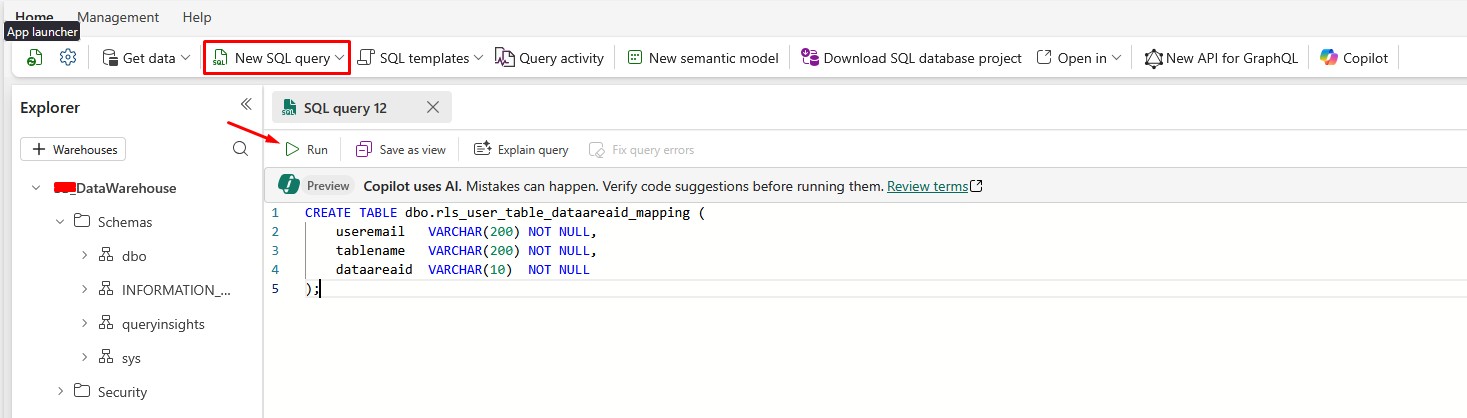
To make RLS flexible, I first created a table where I store which user can access which table and which dataareaid.
CREATE TABLE dbo.rls_user_table_dataareaid_mapping (
    useremail   VARCHAR(200) NOT NULL,
    tablename   VARCHAR(200) NOT NULL,
    dataareaid  VARCHAR(10)  NOT NULL
);
Run this query in Microsoft Fabric data warehouse:
Then I have to populate the table with rules. For example:
INSERT INTO dbo.rls_user_table_dataareaid_mapping (useremail, tablename, dataareaid)
VALUES
('user1@domain.com', 'inventtransferorderheaderentity', 'usab'),
('user2@domain.com', 'inventtransferorderheaderentity', 'usab'),
('user1@domain.com', 'inventtransferorderlinev2entity', 'usab'),
('user2@domain.com', 'inventtransferorderlinev2entity',  'usab');
This allows me to manage permissions centrally, without touching individual tables or reports.
NOTE: Make sure the dataareaid values match exactly how they appear in your data (case-sensitive in Fabric).
Step 2: Create the RLS Predicate Functions
Next, I created table-specific filtering functions. These functions return only a single value (1) if the user is allowed to see the row.
The filtering logic checks:
- Whether the user is an admin (full access)
- Whether the user has a matching permission in the mapping table
Here’s the structure I generated dynamically for each table:
Function for inventtransferorderheaderentity
CREATE FUNCTION dbo.fn_rls_filter_inventtransferorderheaderentity(@dataareaid AS VARCHAR(10))
RETURNS TABLE
WITH SCHEMABINDING
AS
RETURN
    SELECT 1 AS fn_securitypredicate
    WHERE (
        SUSER_SNAME() IN ('admin', 'admin@domain.com')
        OR EXISTS (
            SELECT 1
            FROM dbo.rls_user_table_dataareaid_mapping
            WHERE tablename  = 'inventtransferorderheaderentity'
              AND dataareaid = @dataareaid
              AND useremail  = SUSER_SNAME()
        )
    );
Function for inventtransferorderlinev2entity
CREATE FUNCTION dbo.fn_rls_filter_inventtransferorderlinev2entity(@dataareaid AS VARCHAR(10))
RETURNS TABLE
WITH SCHEMABINDING
AS
RETURN
    SELECT 1 AS fn_securitypredicate
    WHERE (
        SUSER_SNAME() IN ('admin', 'admin@domain.com')
        OR EXISTS (
            SELECT 1
            FROM dbo.rls_user_table_dataareaid_mapping
            WHERE tablename  = 'inventtransferorderlinev2entity'
              AND dataareaid = @dataareaid
              AND useremail  = SUSER_SNAME()
        )
    );
I built similar functions for every table in my warehouse. These functions allow full access for admin users and enforce row-level filters for everyone else.
Step 3: Apply Security Policies for each table
Once the functions were created, I bound them to their respective tables using security policies.
Example for inventtransferorderheaderentity
CREATE SECURITY POLICY rls_inventtransferorderheaderentity
ADD FILTER PREDICATE dbo.fn_rls_filter_inventtransferorderheaderentity(dataareaid)
ON dbo.inventtransferorderheaderentity
WITH (STATE = ON);
Policy for inventtransferorderlinev2entity
CREATE SECURITY POLICY rls_inventtransferorderlinev2entity
ADD FILTER PREDICATE dbo.fn_rls_filter_inventtransferorderlinev2entity(dataareaid)
ON dbo.inventtransferorderlinev2entity
WITH (STATE = ON);
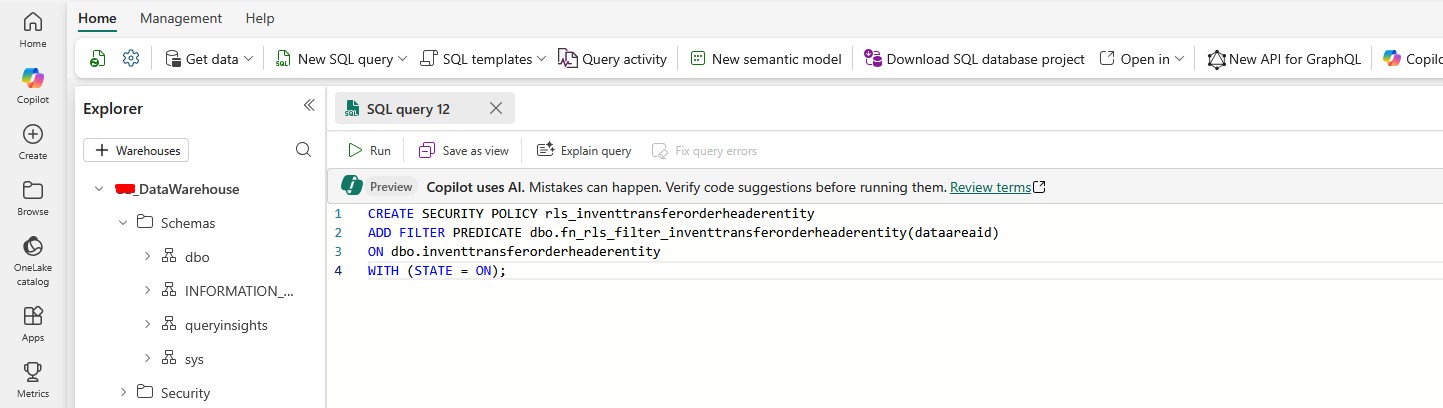
Once applied, these policies filter rows transparently based on who is querying the data.
Testing: What RLS in Microsoft Fabric Looks Like
When a user connects (e.g., from Power BI using AAD authentication), Fabric evaluates the security policy automatically. Each query behaves as if a WHERE clause was silently added.
Once the security policies are active:
- A US finance user sees only their US legal entity data
- A logistics user from France sees only the logistics tables for his country
- A global admin sees everything
- And if a table doesn’t contain
dataareaid, I use a dummy column, just to attach the policy
This has made our data governance consistent across Power BI, Fabric Warehouse, and all SQL endpoints.
Why I Chose the Data Warehouse Approach?
Yes, RLS in OneLake exists. But it is still in preview. That means:
- Not fully supported across all engines
- Not always enforced consistently
- Not yet production-grade for enterprise reporting
So instead of waiting, I implemented RLS where it is fully supported today: in the Data Warehouse, using SQL security policies.
Final Thoughts on RLS in Microsoft Fabric
If you want a stable, scalable way to protect your data, implementing row-level security in Microsoft Fabric directly inside the Data Warehouse is the safest and cleanest approach available today.
To summarize:
- RLS restricts row access based on the user’s identity
- Microsoft Fabric RLS works through SQL functions + security policies
- A mapping table gives you unlimited flexibility
- It scales across users, tables, and countries
- Power BI respects it automatically when using DirectQuery
Whether you’re just getting started or you’re planning a full enterprise-grade solution, this method gives you complete control over your data security.
Key Takeaways
- What is row level security in MS Fabric? It’s a way to restrict access to rows based on user identity.
- Microsoft Fabric RLS works by applying SQL security policies with filter predicates.
- You can manage access with a simple mapping table. There is no need to hardcode logic in multiple places.
- Admin users can be safely excluded from restrictions.
- Power BI respects these rules when users connect via DirectQuery and AAD authentication.
Hope this helps! If you’re just getting started with Fabric, feel free to explore more of my blog posts here. Recently, I wrote a blog post on How do I Give Access to Microsoft Fabric, so make sure you check it out.
If you want to learn more about Microsoft Fabric Data Warehouse, make sure you check out this link. I’ve also found a great book on Amazon called Learn Microsoft Fabric: A practical guide to performing data analytics in the era of artificial intelligence that covers some interesting topics.